Logging an activity in the app
- Tap the + button on the bottom right of the screen.
- Select the category.
- Select the activity type.
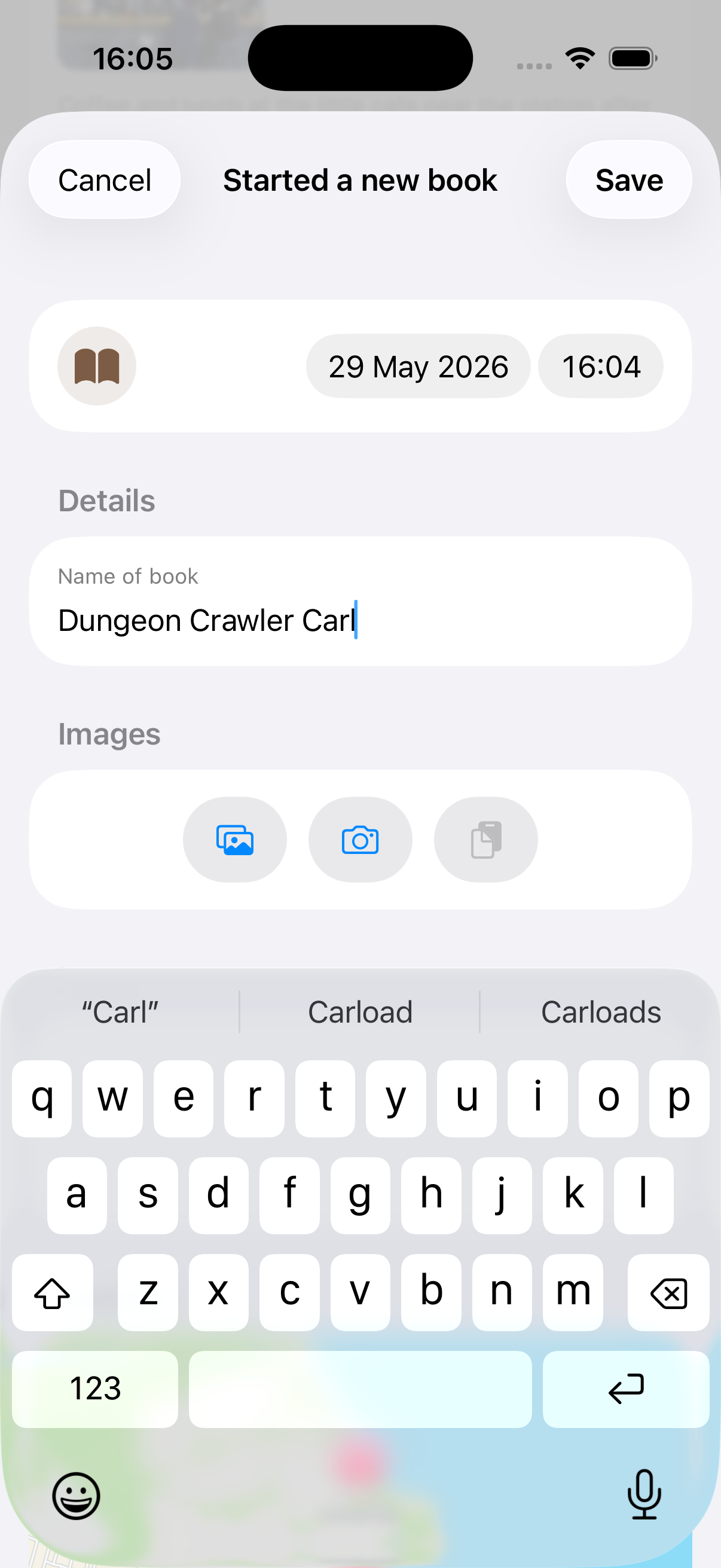
The date and time will be automatically filled in.
If this is the first time you’ve logged an activity, you’ll be asked for permission to access your location. Your current location will then be added to the activity.
If the activity type has any custom fields, you can fill those in. Leave any fields empty if they aren’t relevant or you don’t have time. You can always come back and fill them in later.
You can add images from your photo library or by taking a new one using the camera.
Notes can be used for anything you’d like to say about the activity.
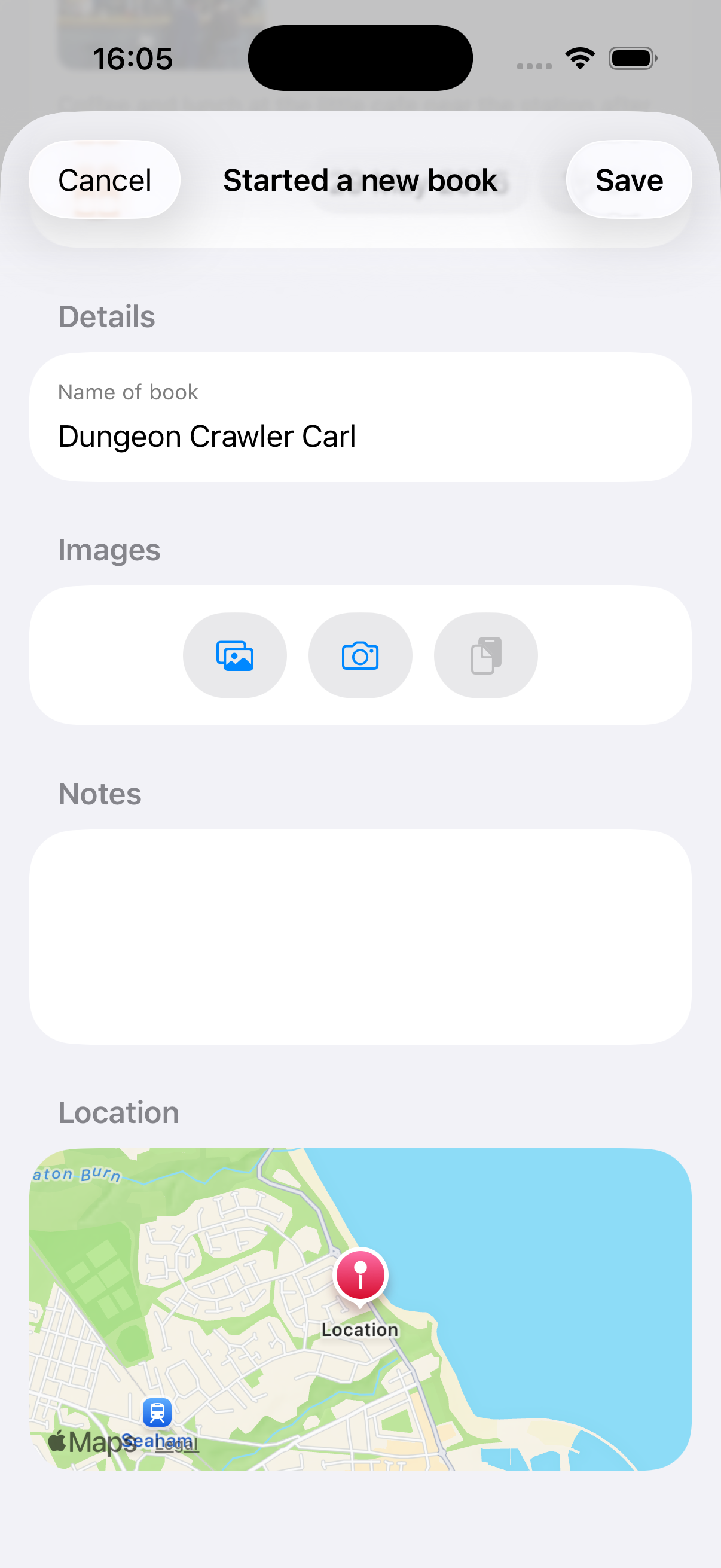
Tap Save once you’ve finished.
It is often better to quickly log an activity and then come back to it later to add more details.
Quicker Logging of Common Activity Types
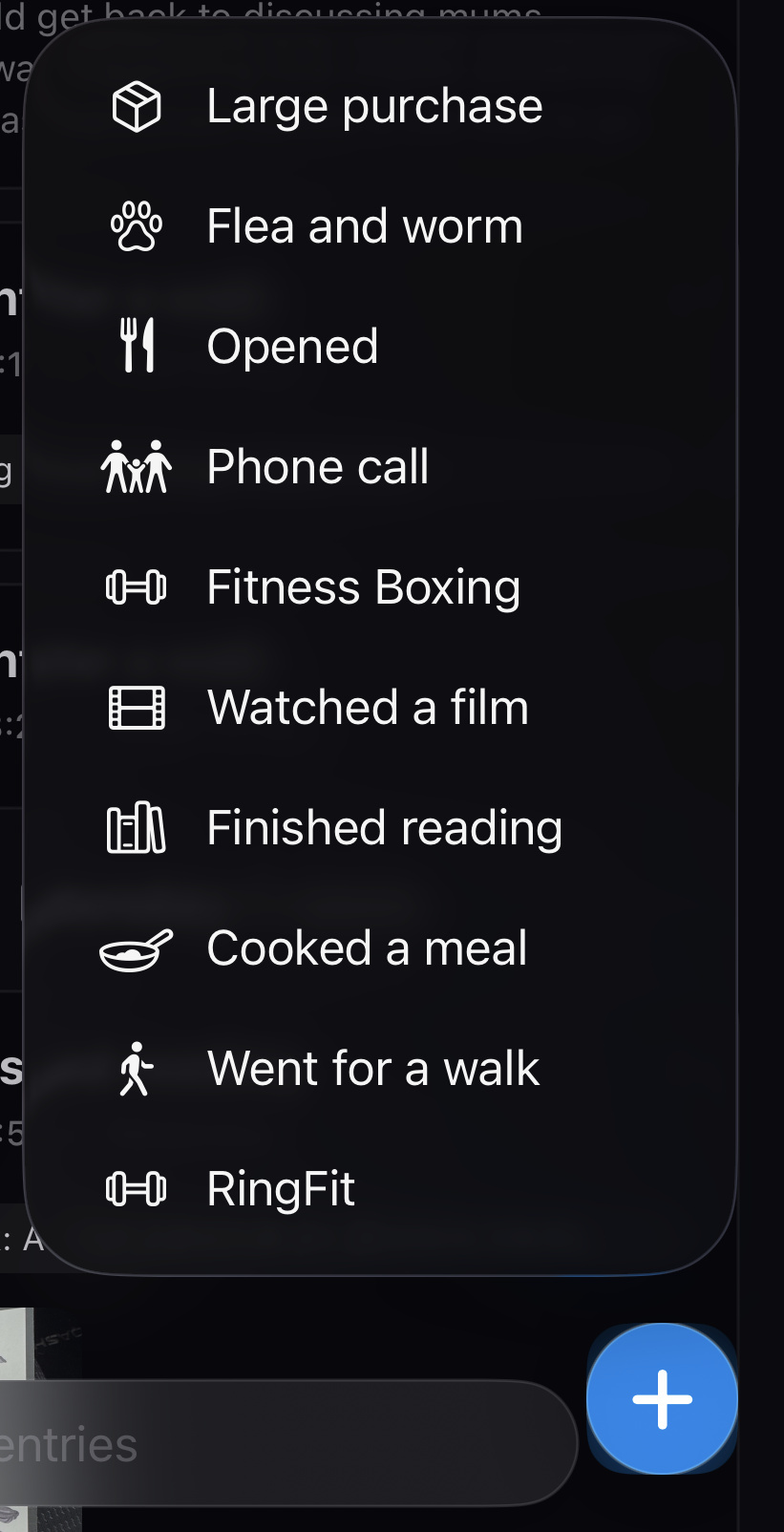
Long-press the + button on the bottom right of the screen to see a list of favorite and recently used activity types.
The Home Screen Widget
Add the Memstone widget to your home screen for quick logging of your favorite and recently used activity types.
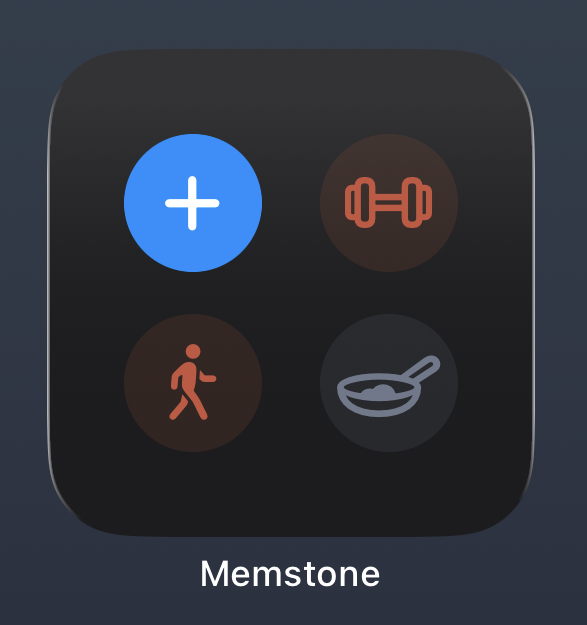
- Tap + to open Memstone with the list of categories.
- Tap an icon to open Memstone with the selected activity type.
Lock Screen Widget
You can add a Memstone button to your lock screen. This opens Memstone with the list of categories.
Apple Watch Support
Memstone has an Apple Watch app for quick logging of activities.
Use your finger or the Digital Crown to scroll through your favorite and recently used activity types.
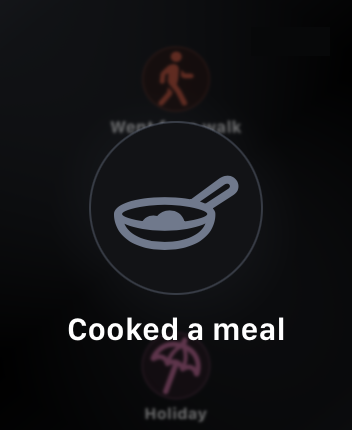
Press and hold to log an activity.
Fill in any details you want to add using the Memstone app on your phone.
Favorite Activity Types
From the main Memstone screen:
- Tap the menu button and select Settings.
- Tap Favorite Activities.
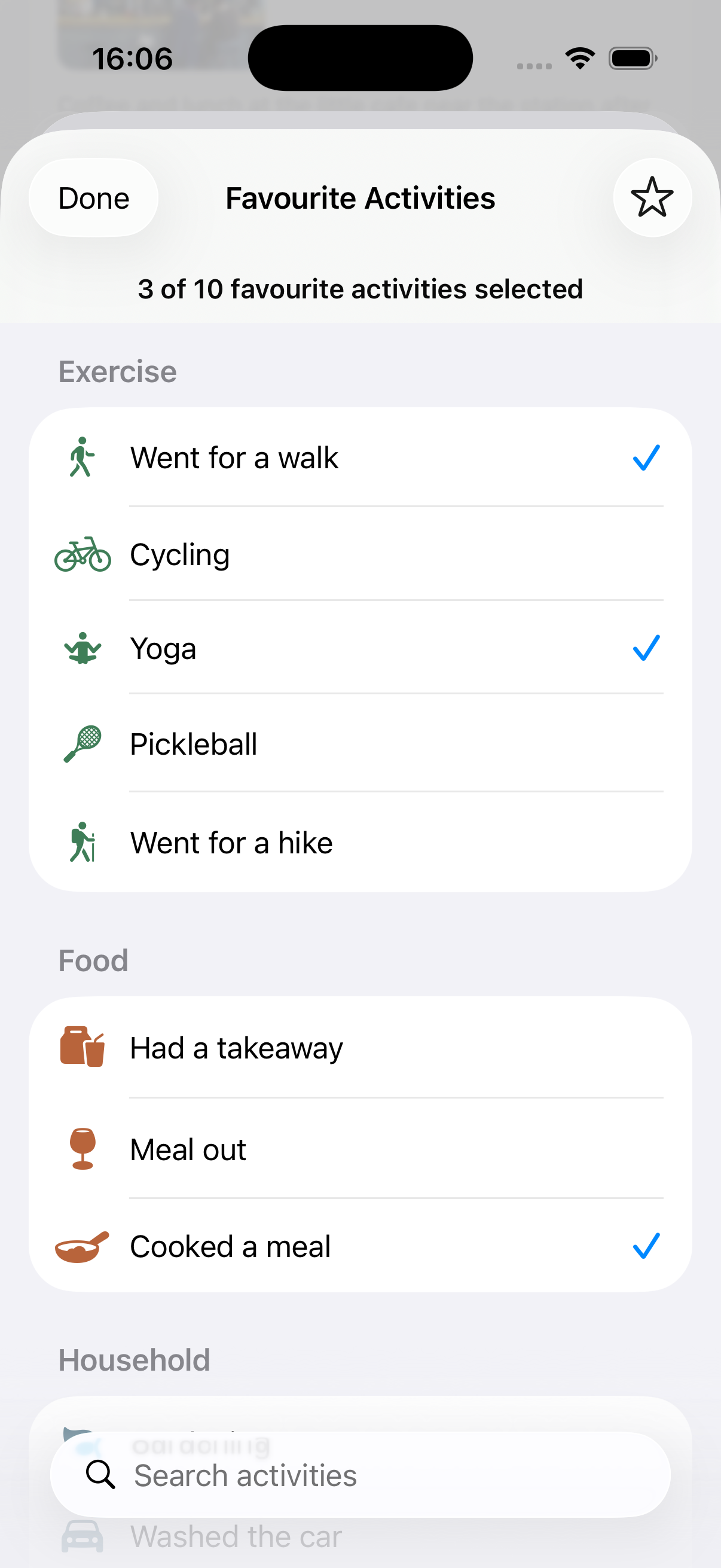
You can select up to 10 favorite activity types.